Native Windows app · Built for NVIDIA captures
Your best plays,
clip‑ready in minutes.
ClipForge does one thing exceptionally well: it stitches your raw NVIDIA ShadowPlay clips together, lets you balance mic and game audio separately, and exports a file that fits under Discord's limit — every time.
Windows 10 / 11 · 64-bit · FFmpeg & NVENC bundled

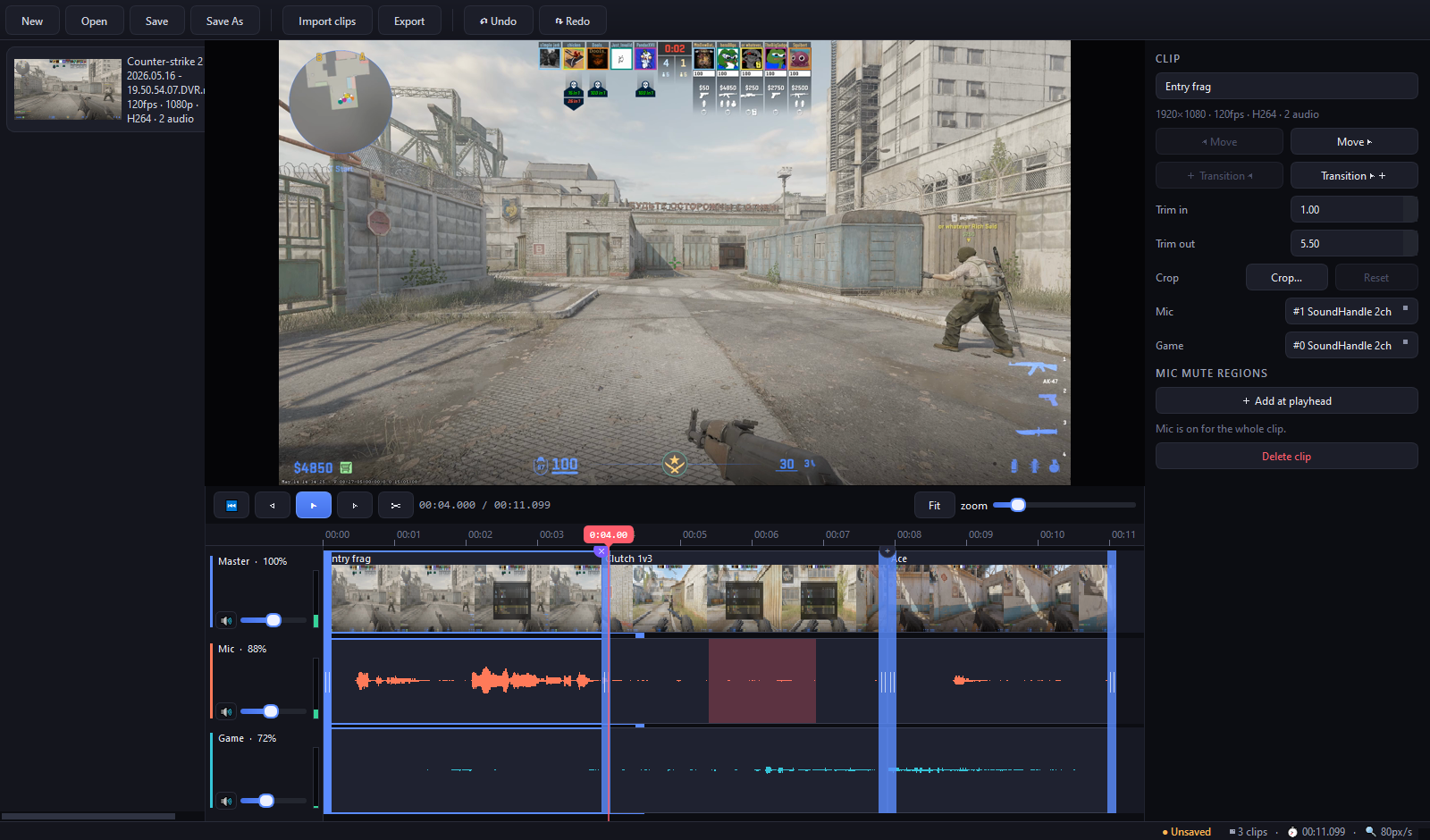
Real footage — three NVIDIA clips trimmed, crossfaded and mixed in ClipForge.
Made for NVIDIA
Opens straight to your NVIDIA replay folder. Reads 120 / 240 fps dual-audio captures natively.
Mic vs game audio
Two separate tracks. Duck the game, mute your mic on a region, ride the levels live.
Fits Discord
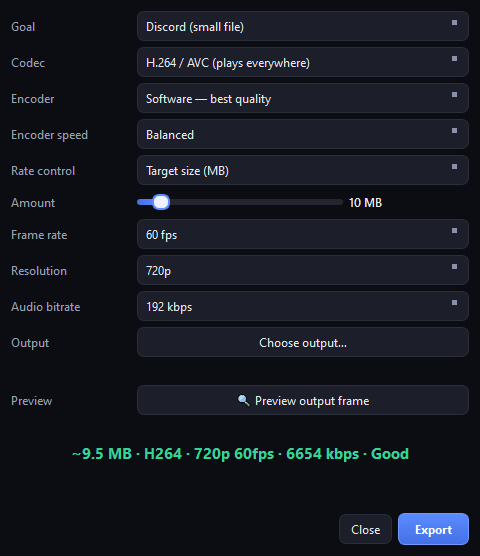
Two-pass targeting lands a sharp clip under 10 MB without the guesswork.
The timeline
Stitch your best moments
into one clean clip.
Drag in a folder of Instant Replays and line them up. Trim with grabbable handles, split at the playhead, reorder by dragging, and drop a transition between any two cuts — dissolve, fade, wipe, zoom and 40 more.
- Frame-accurate trim & split on 120 / 240 fps footage
- 45+ crossfade transitions with an inline + badge
- Filmstrip thumbnails & dual waveforms on every clip
- Undo / redo everything · autosave & crash recovery
Mic + game audio
Your voice and the game,
finally on their own tracks.
NVIDIA records your mic and the game as two separate audio streams — ClipForge keeps them that way. Set independent volumes, hear changes live in the preview, and paint mic-mute regions over the parts you'd rather not share.
- Per-track faders for Mic & Game, right on the timeline
- Live VU meters so you can balance by ear and eye
- Mic-mute regions — silence a callout without cutting the clip
- Routing is auto-detected, override it in a click

Export
Under Discord's limit.
Every single time.
Pick a target size and ClipForge does a real two-pass encode to hit it — no trial-and-error, no "file too large." It even tells you the predicted size and quality before you export.
- Target-size mode lands a crisp clip under 10 MB
- H.264 for "plays everywhere", H.265 & H.266 for max efficiency
- Software for best quality, or GPU (NVENC) for speed
- Preview the exact output frame & resolution first
Crop & reframe
Crop in close.
Keep every pixel.
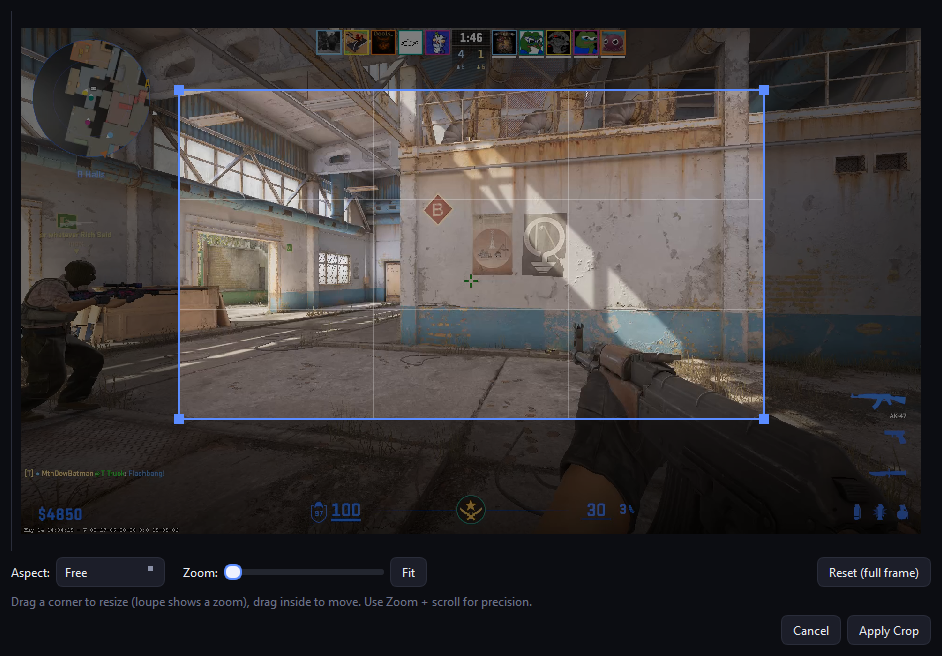
Reframe to the action or cut a vertical for shorts. ClipForge crops on a real frame with a pixel-precise loupe, and a pure crop is passed straight through — no quality-killing re-upscale.
- Aspect presets: 16:9, 9:16, 1:1, 4:3, 21:9 or free
- Magnifier loupe for exact corner placement
- Visually-lossless mode that still plays in VLC & browsers
From raw capture to shared clip in three steps.
Open your captures
ClipForge launches straight into your NVIDIA replay folder. Drag in the clips you want to keep.
Trim & mix
Cut the boring parts, crossfade the highlights, balance mic against game, mute a callout.
Export & share
Choose "Discord," hit export, and drop a sub-10 MB clip into chat that plays inline.
Pricing
Free to use. Pay once for Pro.
No subscription. No ads. No watching a 30-second video to export.
Free
$0
Everything you need to make and share a clip.
- Trim, split, reorder & stitch clips
- Mic + game audio, faders, meters & mic-mute
- Crop & visually-lossless preview
- Dissolve & fade transitions
- Discord export · H.264 · up to 1080p / 60fps
- A small "Made with ClipForge" corner tag on exports
Pro
$24.99 one-time
Unlock the full toolkit forever.
- Everything in Free, no corner tag
- All 45+ transitions
- H.265 & H.266 codecs
- 1440p / 4K · 120 / 240 fps archival exports
- GPU (NVENC) hardware encoding
- Batch export & lifetime updates
Launch price — one purchase, every future update included.
Get ClipForge for Windows.
The free version is the full editor. Upgrade to Pro whenever you want — your projects carry over.
Windows 10 / 11 · 64-bit · ~120 MB · NVIDIA GPU recommended for NVENC
Questions, answered.
Why not just use a generic video editor?
Generic editors don't understand NVIDIA captures. ClipForge auto-detects the mic and game audio streams, opens to your replay folder, handles 120/240 fps without choking, and targets a Discord-friendly file size out of the box. It's purpose-built so the common job takes seconds, not a tutorial.
How does it keep clips under Discord's limit?
You set a target size and ClipForge runs a real two-pass software encode to hit it precisely, then shows the predicted size and a quality rating before you commit. No more re-exporting because the file was 11 MB.
Can I really separate my mic from the game?
Yes — that's the headline feature. NVIDIA records them as two streams; ClipForge keeps them on independent tracks with their own volume faders and live VU meters. You can even paint mic-mute regions to silence a callout without cutting the video.
What's the difference between Free and Pro?
Free is the complete editor — trim, stitch, mix, crop and export an H.264 clip up to 1080p with a small corner tag. Pro removes the tag and unlocks every transition, H.265/H.266, 4K and 120/240 fps archival exports, GPU encoding and batch export. It's a one-time purchase with lifetime updates.
Does it need an NVIDIA GPU?
No. ClipForge works with any clips and exports beautifully on the CPU. An NVIDIA GPU just unlocks fast NVENC hardware encoding for big archival exports.
What about H.266?
It's included as experimental — the most efficient codec available. Heads-up: there's no mainstream player for it yet, so for sharing you'll want H.264 or H.265. ClipForge tells you this right in the export dialog.